

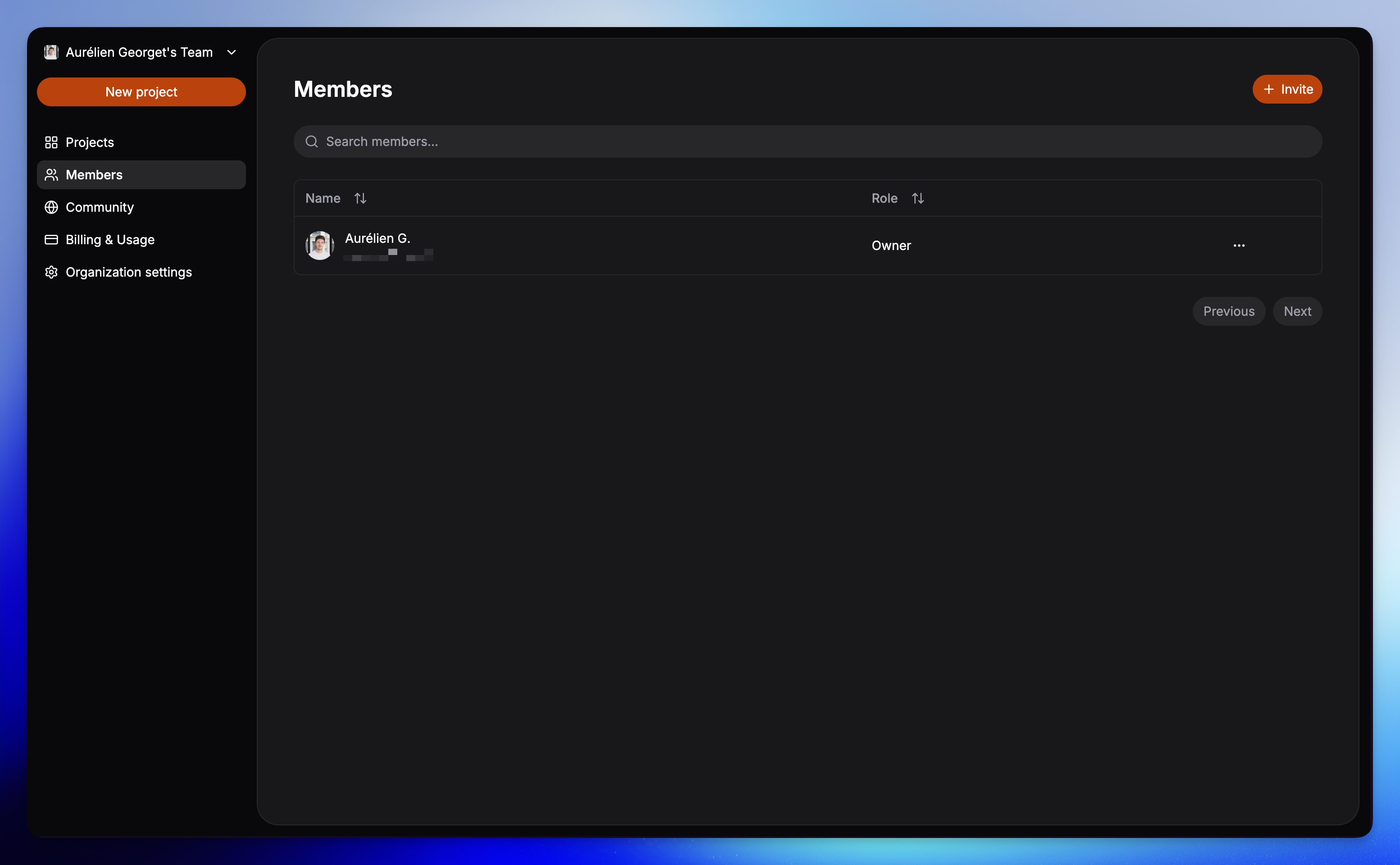
What can you do here?
- View members: See a list of everyone in your organization with their assigned role.
- Search: Quickly find someone by name or email.
- Invite new members: Use the Invite button to send an invitation link by email.
- Assign roles: Give each member the right level of access.
- Manage membership: Update roles or remove members if needed.
- Remove members: Delete members from the organization and remove their access.
Roles and permissions
| Action | Member | Admin | Owner |
|---|---|---|---|
| Access | |||
| Access projects | ✅ | ✅ | ✅ |
| Use basic features | ✅ | ✅ | ✅ |
| Members | |||
| View members list | ✅ | ✅ | ✅ |
| Invite new members | ❌ | ✅ | ✅ |
| Update roles | ❌ | ✅ | ✅ |
| Remove members | ❌ | ✅ | ✅ |
| Organization settings | |||
| View organization settings | ✅ | ✅ | ✅ |
| Edit organization settings | ❌ | ✅ | ✅ |
| Manage billing & invoices | ❌ | ❌ | ✅ |
| Delete organization | ❌ | ❌ | ✅ |
Use Member for collaborators, Admin for people helping manage the team, and Owner for those responsible for billing and full control.
Why it matters?
- Keeps access to projects organized and secure
- Makes it easy to bring new teammates on board
- Ensures each member only has the permissions they need